> For the complete documentation index, see [llms.txt](https://docs.simulon.com/hub/llms.txt). Markdown versions of documentation pages are available by appending `.md` to page URLs; this page is available as [Markdown](https://docs.simulon.com/hub/simulon-hub/blender-integration/simulon-link.md).
# Simulon Link
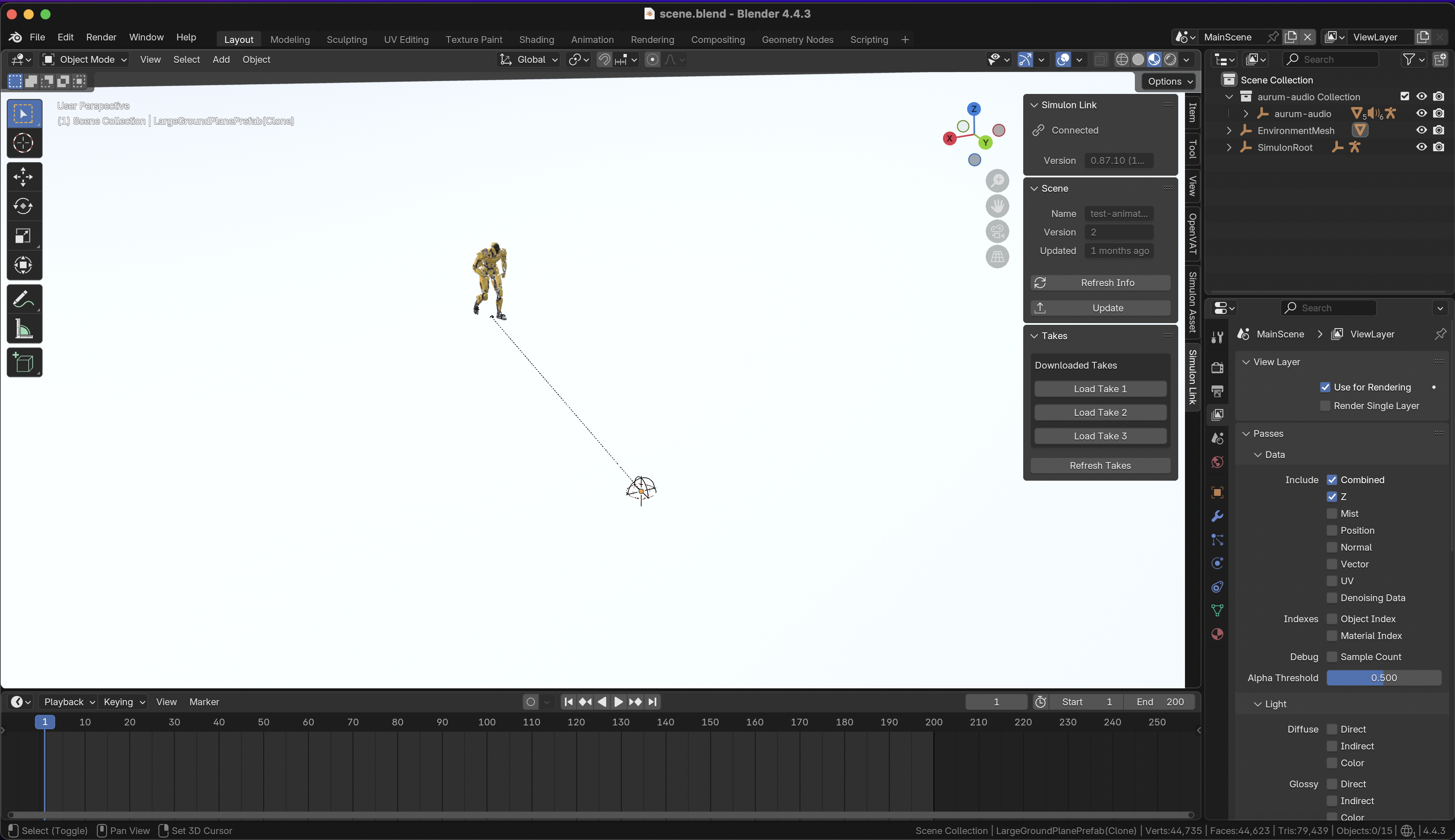
The Simulon Link plugin is a plugin in Blender that connects you to our cloud. Allowing scene edits to your already captured takes, or the ability to edit and render your scene locally.
After installing the Simulon Link plugin and opening your locally editable scene you will be able to access the Simulon Link tab.
{% hint style="info" %}
**Note**
You are able to open your scene's .blend from Hub or Blender directly. A connection between Blender and Hub will established as long as Hub is open.
{% endhint %}
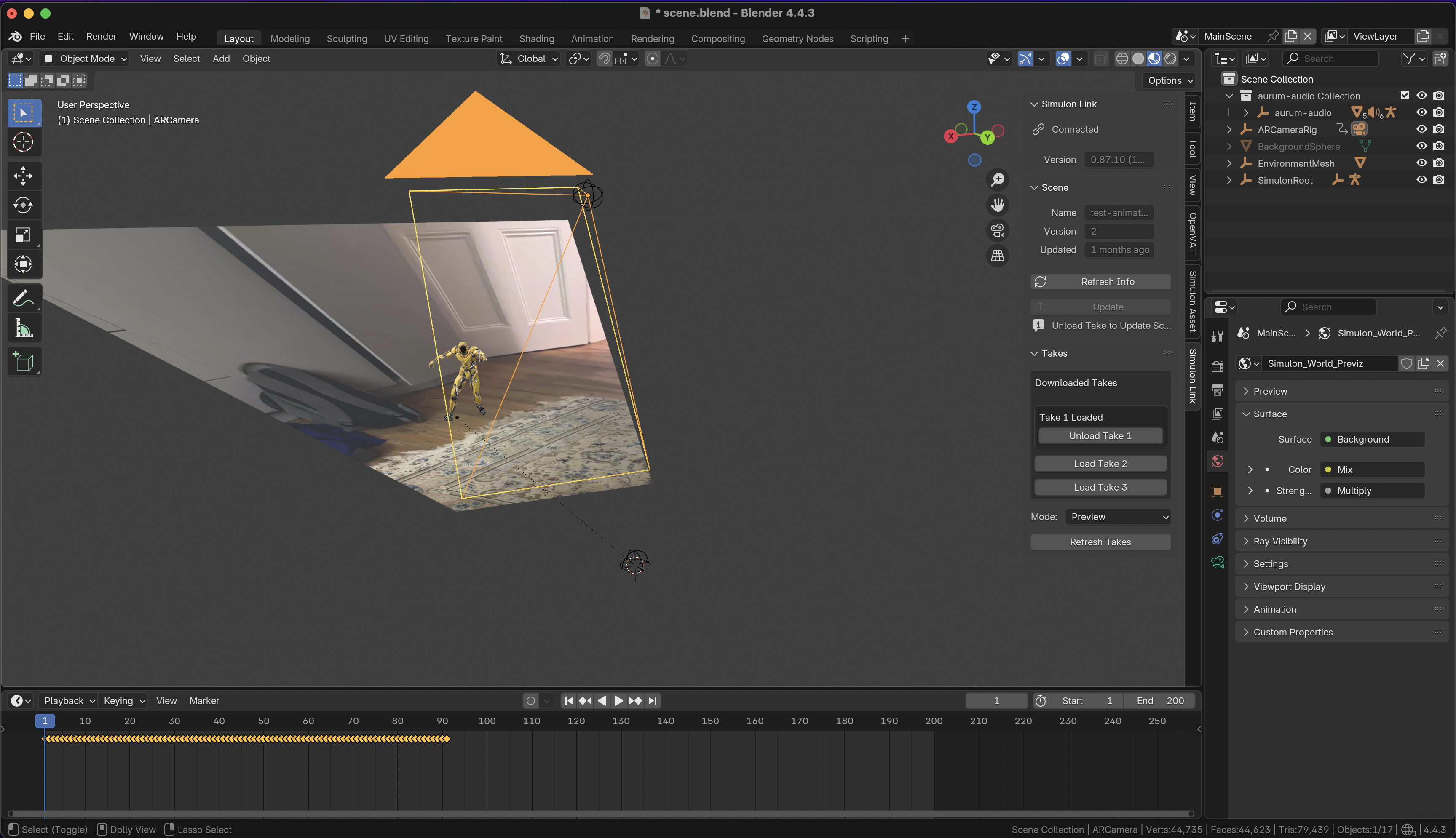
After Blender is opened you'll be shown your scene geometry and assets as was created in the app. By default no camera or light data is instantiated after opening.
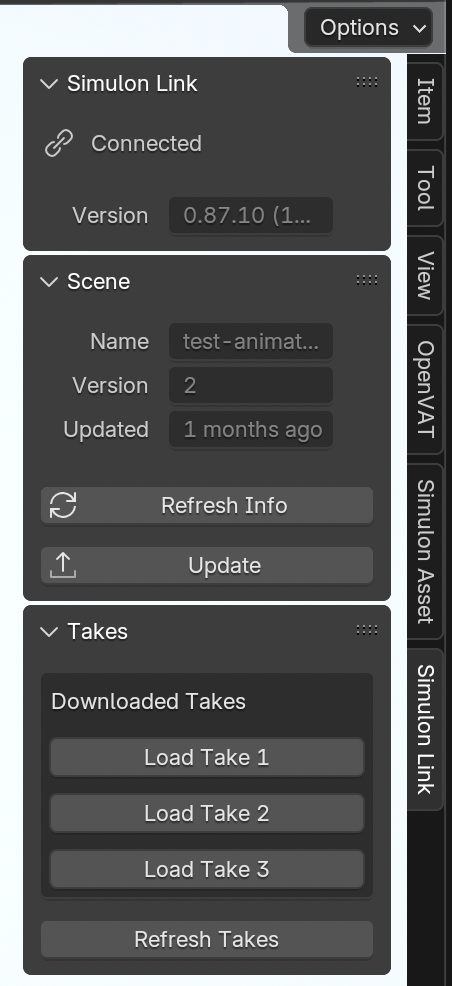
You are able to then load takes captured by the app using the "Load Take" buttons.
When loading a take lighting, camera data and the selected animation for your asset during take capture will be loaded.
## Syncing Edits from Blender to Simulon
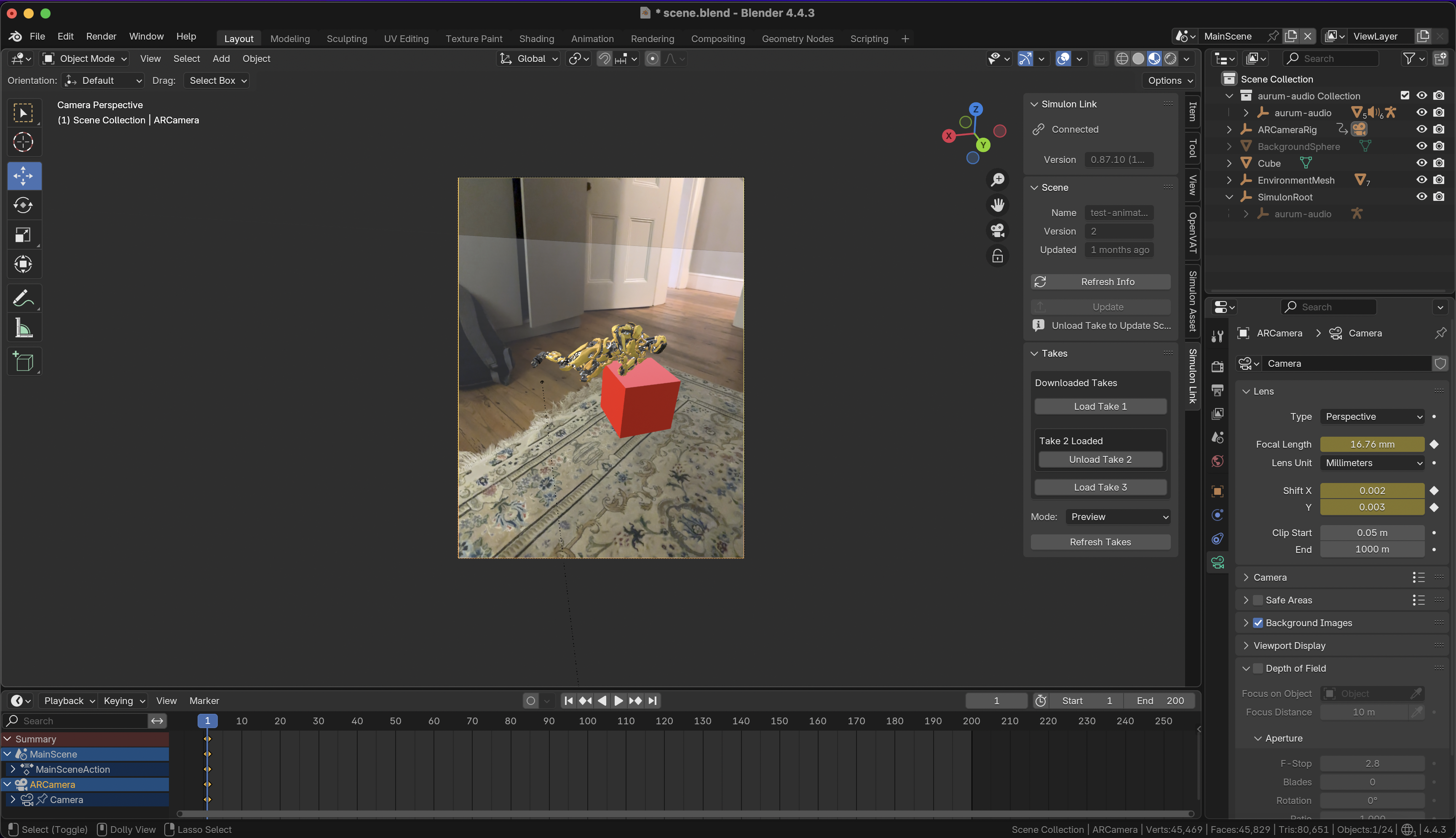
Simulon allows for any edits done to your scene in Blender to be synchronized back up to our cloud. This is a powerful feature which allows creators to make changes to the takes they have already created in post. This allows you to harness all the scene edit features of Blender in your renders. You can add particle systems, fog, clean up environment scan geometry and much more.
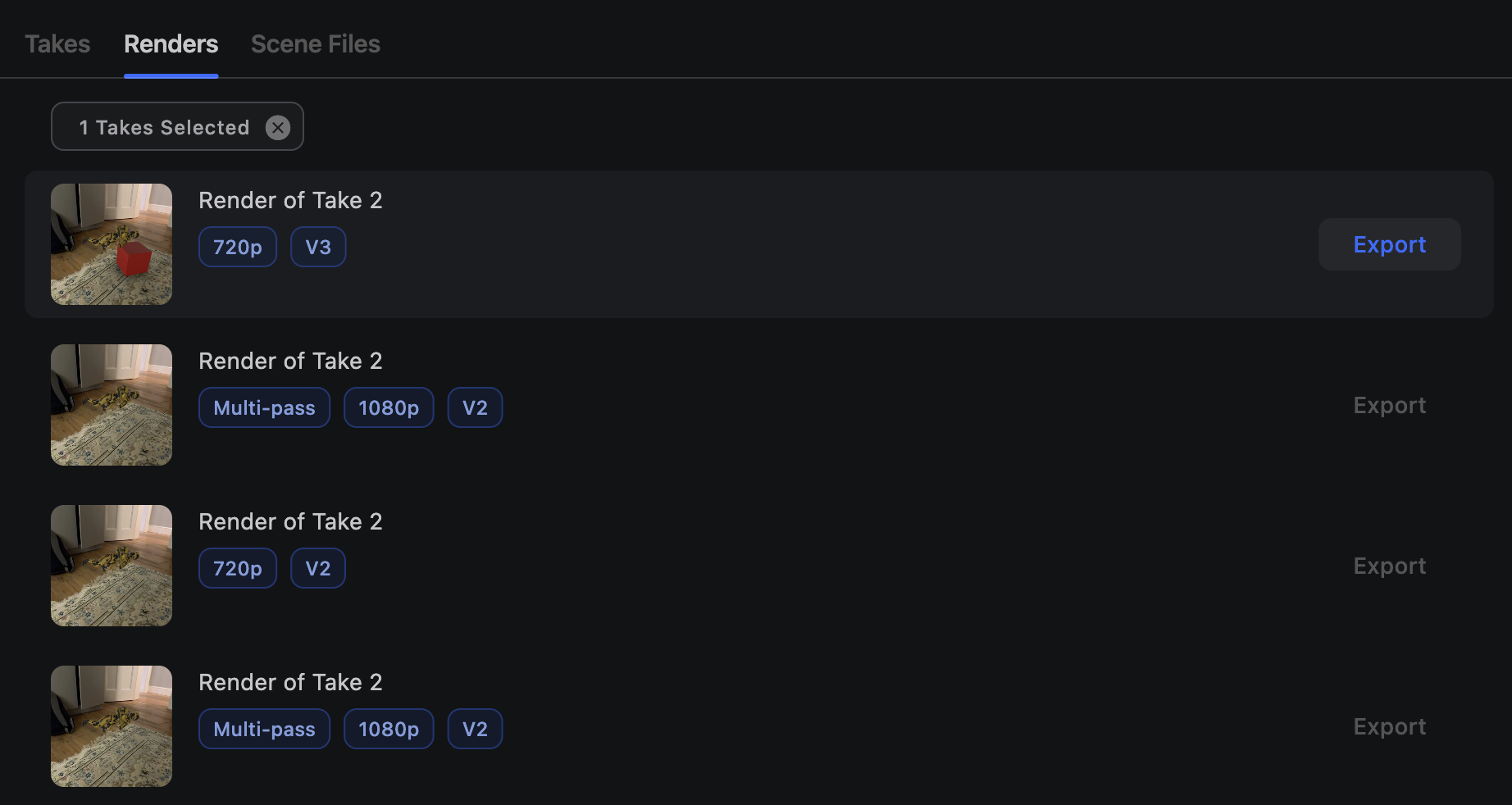
Adding a red cube to Blender Scene
After you've made changes to your scene, you can hit the "Update" which will handle the process of zipping up your files, creating a delta file and uploading this to Simulon. Status updates can be found in both Hub and the Link plugin.
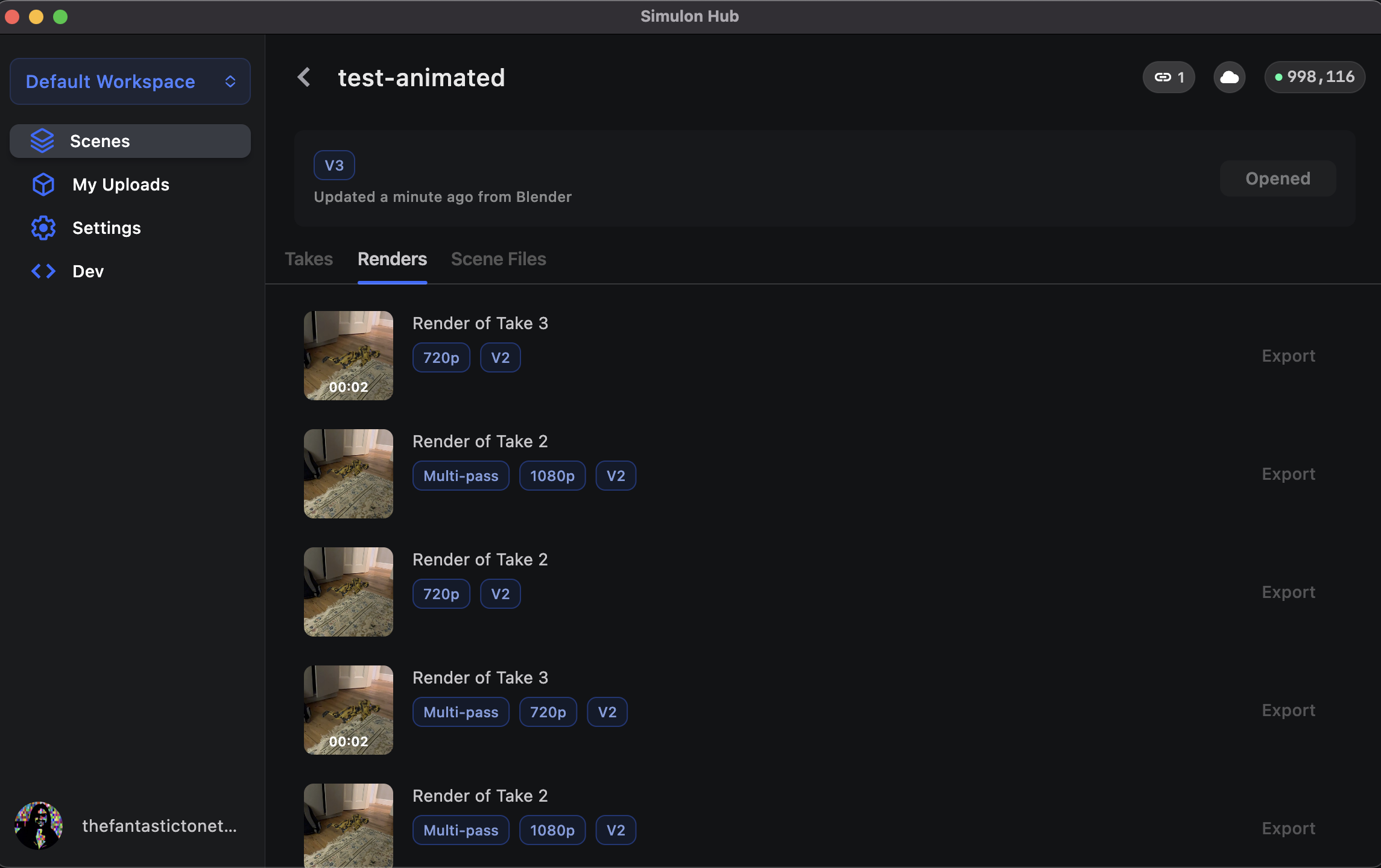
One the update has been processed, you will see the scene version number increment and a message saying when it was updated and when.
You can then simply rerender the take you'd like and it will render with your scene changes.